Learning how to curve text in Canva can significantly enhance your design projects, adding a dynamic and professional touch. This guide will walk you through the simple yet powerful steps to master this feature, transforming your ordinary text into captivating visual elements. Whether you’re creating logos, social media graphics, or invitations, curved text can make your designs stand out and convey specific moods or styles.
Curved text isn’t just about aesthetics; it’s a powerful tool for visual hierarchy and brand identity. It can guide the viewer’s eye, create a sense of movement, or neatly fit within circular or organic design elements. Mastering how to curve text in Canva effectively is crucial for unlocking new creative possibilities, allowing your designs to truly shine.
Understanding the Basics of How to Curve Text in Canva
Canva makes it incredibly easy to manipulate text, and curving it is no exception. The “Effects” tab is your gateway to this functionality, offering a range of text styles including the popular curve option. Before you dive in, ensure you have a Canva account and understand the basic interface.
- Choose a suitable font: Some fonts look better when curved than others, so experiment.
- Consider your design’s purpose: Curved text works exceptionally well for emblems, circular logos, or artistic layouts where a dynamic flow is desired.
- Start with a clear canvas: Or an existing design where you want to add curved text to an element.
- Be mindful of readability: Overly curved or too small text can be difficult to read, so balance aesthetics with clarity.
7 Essential Steps for How to Curve Text in Canva Like a Pro
Follow these straightforward steps to expertly apply the curve effect to your text in Canva. You’ll be amazed at how quickly you can achieve professional and engaging results with minimal effort.
Step 1: Open Your Canva Design
First, log in to your Canva account and open the specific design you wish to edit. If you’re starting fresh, create a new design by clicking “Create a design” and choosing your preferred dimensions or a template.
Step 2: Add Your Text
Click on the “Text” tab in the left-hand sidebar. Select a heading, subheading, or body text to add it to your canvas. Type out the words you want to curve. You can always adjust the text content, font style, and color later to perfectly match your design’s theme.
Step 3: Select the Text Box
Click on the text box you’ve just created on your canvas. This action will activate the text editing options in the toolbar at the top of your screen. You’ll see familiar options for font, size, color, alignment, and more.
Step 4: Navigate to the “Effects” Tab
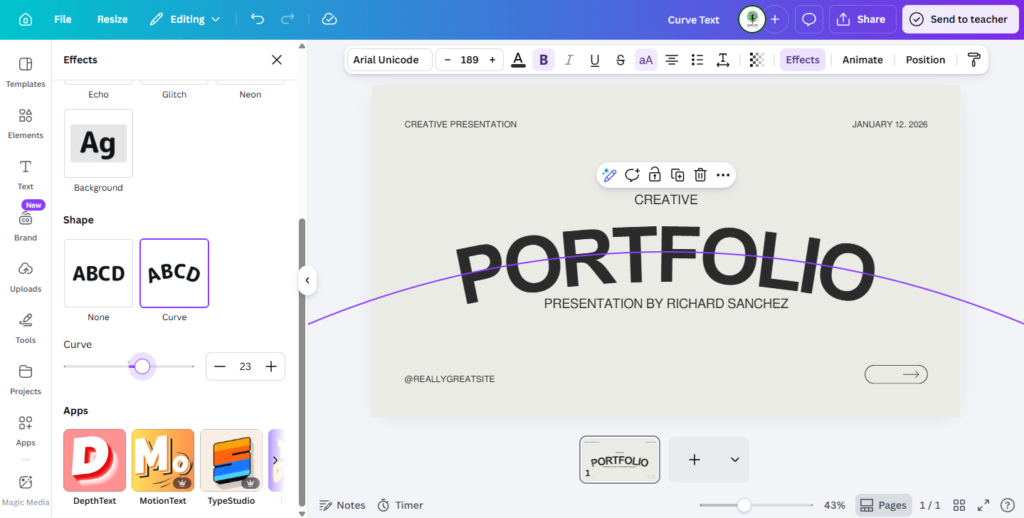
In the top toolbar, you’ll find an option labeled “Effects.” Click on this tab. A sidebar will open on the left, displaying various text effects such as Shadow, Hollow, Glitch, and most importantly for our purpose, “Curve.”
Step 5: Apply the Curve Effect
Within the “Effects” sidebar, locate and click on “Curve.” Instantly, your selected text will transform, taking on a default curved shape. This is the core action for how to curve text in Canva, making your text dynamic and engaging.
Step 6: Adjust the Curve Amount and Direction
Once “Curve” is applied, a slider will appear below it. Dragging this slider to the left will curve the text downwards, creating a concave shape, while dragging it to the right will curve it upwards, creating a convex shape. Experiment with the slider until you achieve the desired arc for your design, whether it’s a subtle bend or a dramatic semi-circle. You have full control over the curvature’s intensity and direction.
Step 7: Refine and Position Your Curved Text
After curving your text, you can still adjust its size, font, color, and rotation. Use the rotation handle (the circular arrow below the text box) to spin the text box and perfectly align your curved text within your design. Resize it by dragging the corners of the text box. Continue refining until it looks just right and integrates seamlessly with other elements. This final step is crucial for mastering how to curve text in Canva effectively and achieving a polished aesthetic.
Advanced Tips for Curving Text in Canva
To truly elevate your designs, consider these advanced tips when you curve text in Canva. These techniques can help you achieve even more sophisticated looks and integrate your curved text seamlessly into complex layouts.
- Combine with shapes: Place curved text around circles, half-circles, or other geometric shapes for creating compelling logos, emblems, or badges. This adds a sense of completeness and professionalism.
- Use multiple text boxes: For a full circle of text, create two separate curved text boxes – one curved upwards and one curved downwards – and position them carefully. This allows for precise control over each half of the circle.
- Adjust letter spacing: Sometimes, curving text can make letters appear too close or too far apart, affecting readability. Use the “Spacing” option in the top toolbar to adjust letter and line spacing for better legibility and a balanced look.
- Experiment with fonts: Different fonts react differently to the curve effect. Serif fonts might look elegant, while sans-serif fonts offer a cleaner, modern feel. Explore Canva’s extensive font library to find the perfect match for your curved text.
- Layering: Use curved text as an overlay on images or textures to create depth and visual interest.
Mastering these nuances will help you achieve a polished and professional finish every time you curve text. For more comprehensive design insights, read up on essential graphic design tips.
Troubleshooting Common Issues When You Curve Text in Canva
Occasionally, you might encounter minor hurdles when trying to curve text in Canva. Here are solutions to some common problems:
- Text not curving: Ensure the text box is actively selected on your canvas before clicking “Effects.” Also, double-check that you’ve clicked “Curve” and not another effect from the sidebar.
- Curve direction incorrect: Use the slider to adjust the curve. Positive values curve up, negative values curve down. If you need a full circle, remember you might need two separate text boxes.
- Text looking distorted or illegible: Try a different font. Some decorative fonts don’t handle curves as gracefully as simpler ones. Adjusting letter spacing can also significantly improve clarity.
- Can’t find “Effects” tab: Make sure a text box is actively selected on your canvas. The effects option only appears in the top toolbar when a text element is chosen.
Unleash Your Creativity by Learning How to Curve Text in Canva
Learning how to curve text in Canva is a skill that opens up a world of creative possibilities for your designs. With just a few clicks, you can add depth, flair, and professionalism to any project, from personal invitations to professional marketing materials. By following these steps and experimenting with the available options, you’ll be able to create stunning visuals that truly capture attention and communicate your message effectively. Start incorporating curved text into your designs today and watch your creativity flourish, making your visual content truly unique!